Introduction to the Oraezo Seller Panel
The Oraezo Seller Panel is an essential tool for vendors looking to expand their e-commerce presence. Its user-friendly interface allows sellers to manage their inventory effectively, making it a preferred choice for many entrepreneurs. In this guide, we will walk you through the step-by-step process of adding products using this platform. Each step will be accompanied by illustrative images to enhance your understanding.
Step 1: Logging into Your Oraezo Seller Account
The first step in adding products is to log into your Oraezo seller account here
TIP: All required fieds are marked with *
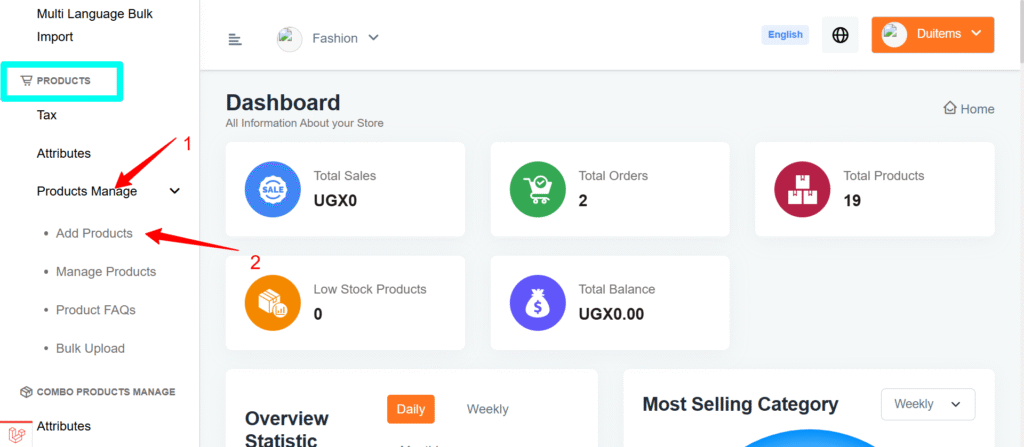
Go to producst>Product Manage>Add Products
A form to add your first product will appear.
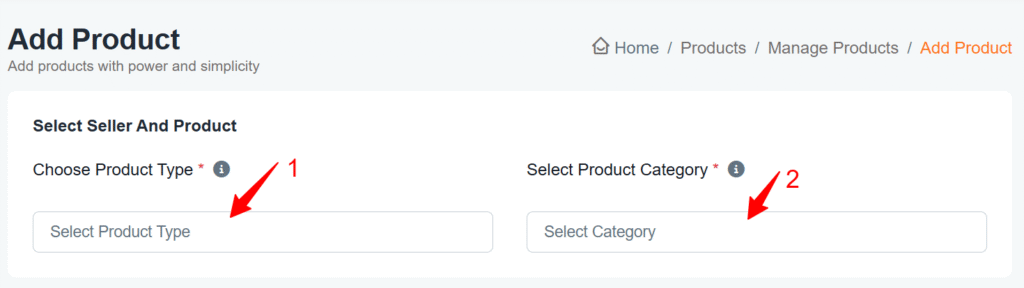
- Select type of your product
- select category (in case you don’t see your category, please read how to add it here or contact us for assistance)

- Add product title (Required)
- Select Brand (optional)
- Indicator (Best to leave it to non, works mostly when adding food products)
- Type your product description or use Ai to generate it (required)
- Add where the product was made (optional)
- Add HSN Code for the product your working on (optional)

9.Add tags for your product (optional, but they can help increase product visibility)

10. Select Tax (optional)
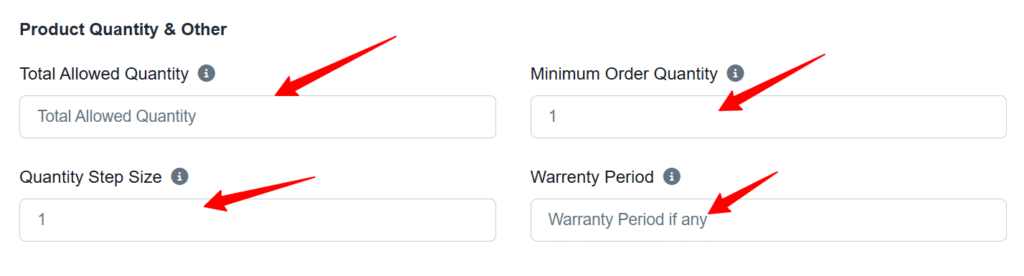
- Total Allowed Quantity: (required, enter 0 for unlimited) This is the total quantity a customer can buy in one order.
- Add Quantity Step Size: (optional, leave to 1) The number by which the quantity increases when a customer adjusts it.
- Minimum Order Quantity: (opyional, leave to 1) The minimum quantity a buyer is allowed to purchase.
- Warranty Period: Enter warranty period eg 6month, 1yr etc
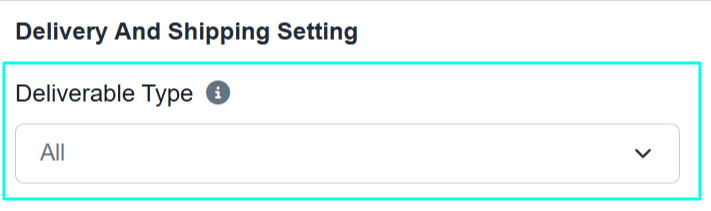
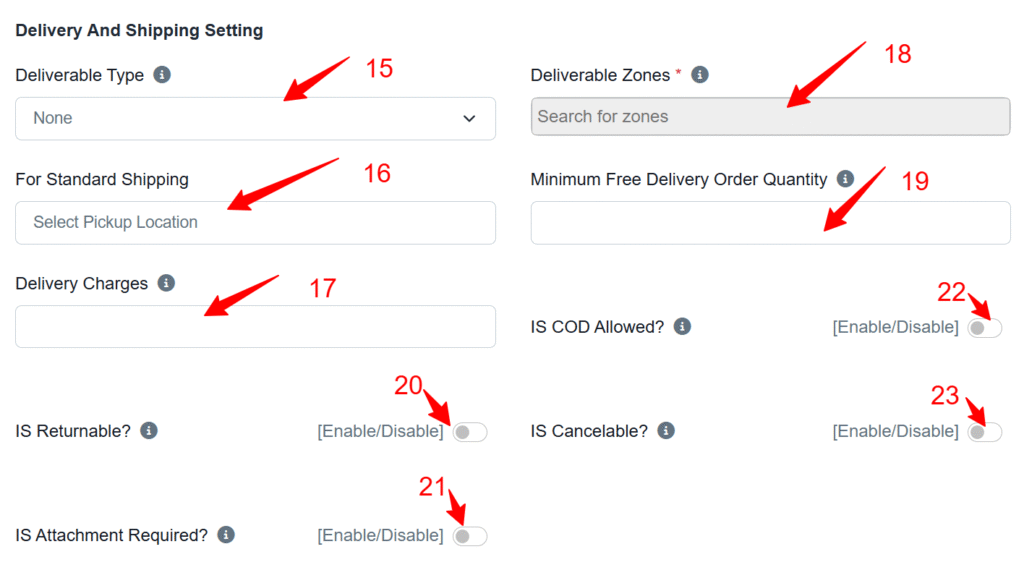
- Deliverable Type (Required* default is Non. Please make sure you select All or Specific, All means product is sold to all districts of Uganda and Specific means it’s sold to specific areas.
- For Standard Shipping (optional)
- Delivery Charges (optional)
- Deliverable zone (optional) If you selected Specific in step 15, select the cities you selling to or else skip
- Minimum Free Delivery Order Quantity (optional)
- for 20,
- 21
- 22
- and 23, Enable or Disable your preferable option (default is Disabled)
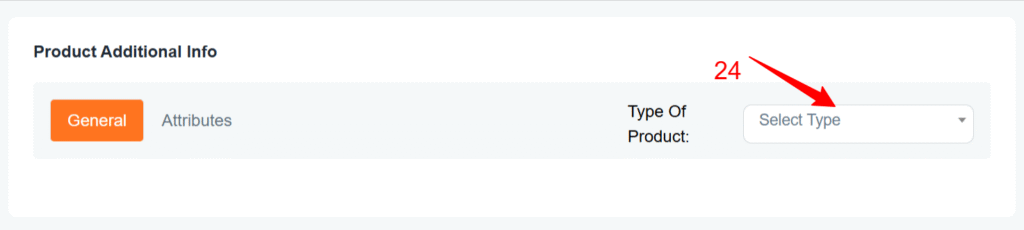
Select product type (Simple product or Variable product) Simple Product: This is a single product with no variations (e.g., size or color). Variable Product: A product that comes in different options, like size, color, or style. you can click here to view a simple product or here to view a variable product
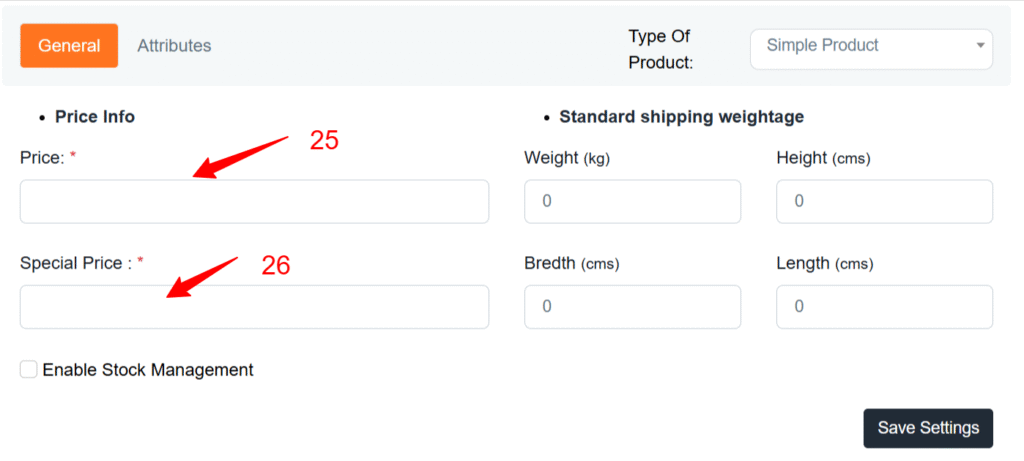
- Enter regular price for the product eg. 50000
- Enter total new price after discount eg 45000, this means you have given customers a discount of 5000. If your not giving out discount price enter 0 in the special price. Note: Please don’t leave special price field empty, you can use 0 for no discount.
For Variable product, please read visit this page here
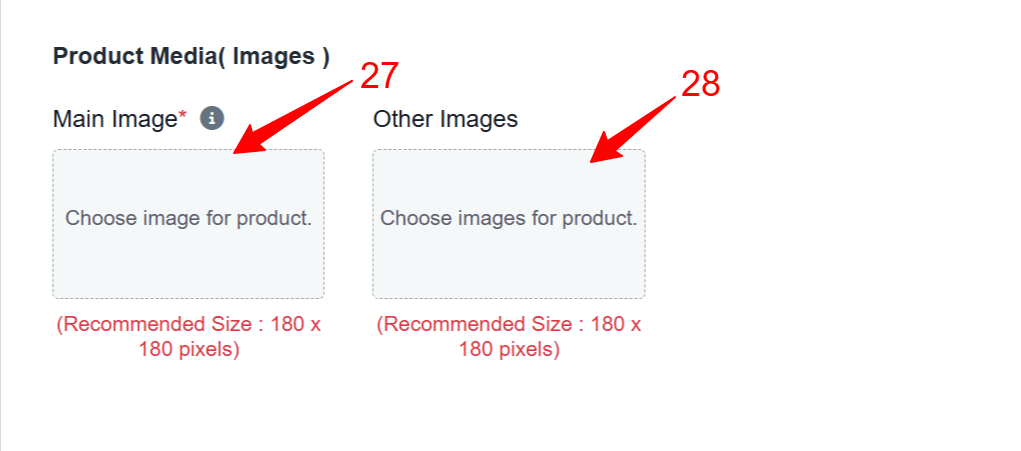
- Main image (Required) This will be the first image customers see.
- Other image (optional) This is the gallery for your product, you can add upto 6 images
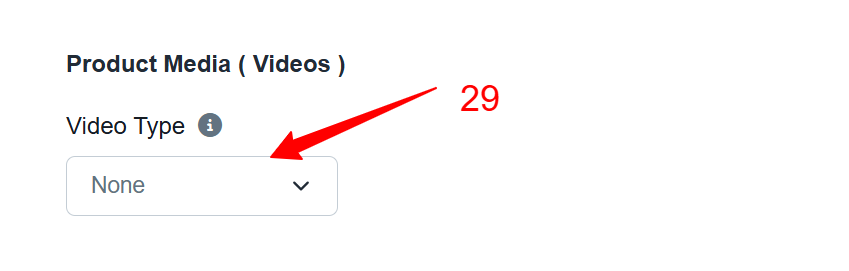
29.Video Type (optional) select to display your product in video

- and 31 Product Description (Optional) You can generate this with Ai
Now you have finished editing your product and you can continue to submit. If an error occurs after clicking ‘Submit,’ visit this page for help or contact us directly, we’re always nearby.