
To manage order in the app, watch this video here
or continue reading below.
1. Seller Panel Overview
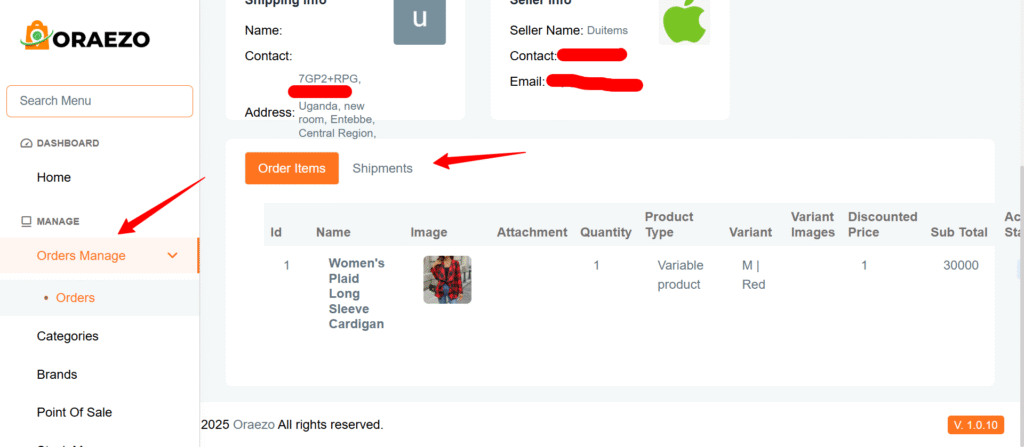
- Login to your account>go to orders manage>orders>edit the order you want to work on.
- In the order section, you’ll notice two tabs: Order Items and Shipments.
- In the Order Items tab, you’ll see all the items for your orders.
- In the Shipments tab, you’ll find a “Create a Parcel” button and Created Parcels List.
2.Create Parcel
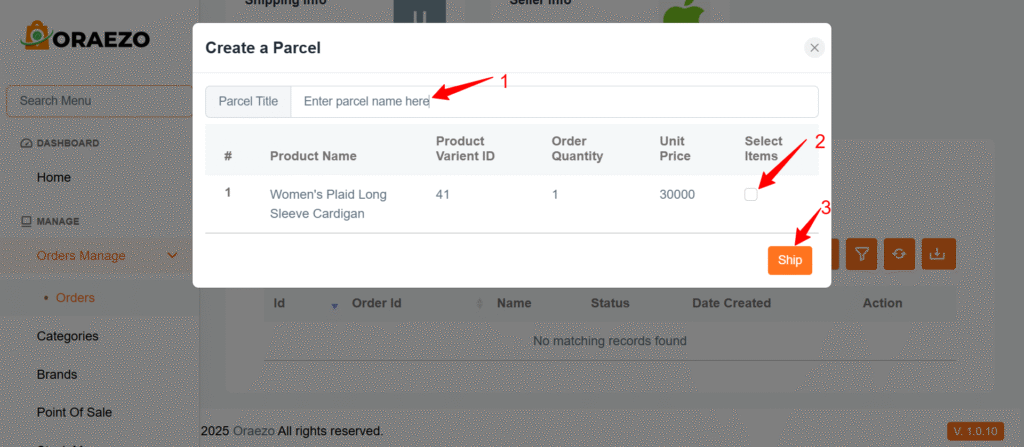
To ship an order, click on the “Create a Parcel” button. You’ll be able to select the items you want to ship and then create the parcel.
3. Managing Parcels
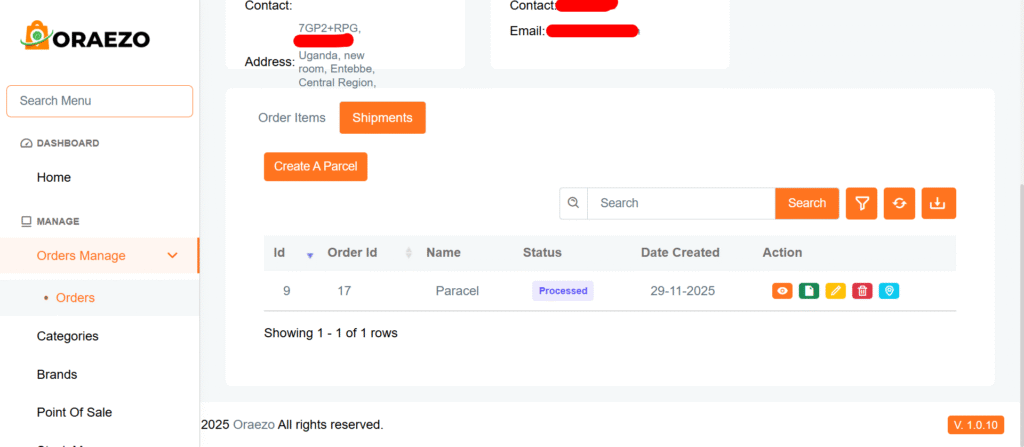
Once a parcel is created, it will appear in a list with four action buttons:
- View: See the items inside the parcel.
Invoice: View or download the invoice for the parcel.
3. Managing Parcels
Once a parcel is created, it will appear in a list with four action buttons:
- View: See the items inside the parcel.
- Invoice: View or download the invoice for the parcel.
- Update Status: Open a window to update the shipping status.
Delete: You can delete a parcel, but only if it hasn’t been shipped yet.
Updating Shipping Status
When you click Update Status, a window will open: Under Local Shipping: Select the delivery boy and update the status.
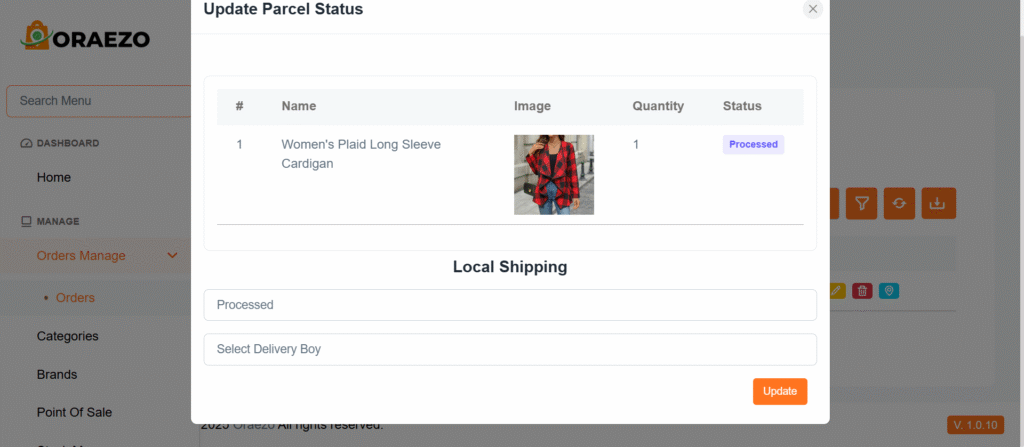
A notifiction has been sent to the delivery boy to continue with order delivery.